Introduction of SSD Shortage
By now, the global tech industry faces a critical and worsening shortage of Solid-State Drives (SSDs). Industry experts declare that the shortage may last for years.
What Causes SSD Shortage
Unlike past cyclical shifts, this crisis stems from a profound structural change in the semiconductor market. Additionally, this problem is related to these reasons:
AI infrastructure Explosion
Large-scale AI data centers are consuming unprecedented amounts of high-capacity SSDs. As AI transitions from training to the data-intensive “inference” phase, the demand has exceeded the manufacturing capacity of the physical world.
Manufacturing Prioritization
Major chip manufacturers, such as Samsung, SK Hynix, and Micron, have adjusted their limited wafer capacity towards the high-margin High Bandwidth Memory (HBM) used in AI accelerators. Consequently, the manufacturing capacity for consumer market SSDs has decreased.
Shift from HDDs to SSDs
Data centers are increasingly transitioning from traditional HDDs to SSDs for improved data loading speeds and enhanced power efficiency, which further increases the demand for NAND flash.
Production Scaling Issues
Manufacturers had scaled back production during the market slowdown of 2022-2023. When demand for AI begins to surge dramatically, supply is unable to keep up with demand, leading to a significant shortfall in SSD availability.
Supply Chain Constraints
Constructing new semiconductor fabrication plants (fabs) or expanding existing ones is a slow process, often taking 18 to 24 months.
Furthermore, beyond NAND flash and other critical components such as SSD controller ICs and substrates have also experienced supply bottlenecks.
How to Increase SSD Lifespan – Best Practices to Maximize SSD Life
This comprehensive guide covers how long SSDs typically last and provides effective methods on how to increase SSD lifespan on Windows 10/11.
Read More
What Are the Impacts of SSD Shortage
The primary impacts of the current SSD supply crisis are sharply rising prices and reduced product availability for consumers and businesses. In addition, there are some other impacts. Here’s the detailed breakdown:
Impacts on Consumers
- Soaring prices: The surge in NAND flash memory prices leads to consumer SSD price hikes of 50% to over 100%. This affects not only SSDs, but also RAM and hard drives, resulting in soaring prices throughout the storage market.
- Reduced availability & choice: Gaming SSDs in popular capacities like 512GB and 1TB are not easily available as manufacturers focus on more profitable enterprise orders.
- Lower specifications: To maintain stable prices for entry-level models, some manufacturers may decrease the RAM or SSD capacity available in new devices.
- More expensive computers: The rising cost of components such as NAND flash will force PC and laptop manufacturers (such as Dell, CyberPowerPC, and Asus) to increase the final prices of their products.
- Upgrade challenges: Upgrading current systems has become significantly more expensive, making many consumers and businesses extend the lifespan of their current hardware.
Impacts on Businesses and Industry
- Increased operational costs: The hardware cost is high for data centers, cloud service providers, and enterprise storage solutions, which may be passed on to customers.
- Shifting production priorities: Major manufacturers are adjusting production lines to focus on high-bandwidth memory (HBM) and enterprise-grade products for AI applications. This will reduce the capacity of consumer-grade NAND flash memory.
- Project delays: Due to procurement challenges, organizations that are planning major IT upgrades, such as new server deployments or AI platform upgrades, will face extended lead times and potential project delays.
- Market consolidation: Micron is exiting the consumer market, which will reduce competition and impact the supply stability of the remaining companies.
- Supply chain volatility: Manufacturers encounter limited supply, with some halting shipments and limiting customer purchases. This causes a need for proactive demand forecasting and bulk purchasing to secure inventory.
PC Memory (RAM) Shortage
In addition to the SSD shortage, there is another issue arising from the increasing demand for AI technology: PC memory shortage.
This DDR5 RAM shortage has led to skyrocketing prices, with consumer DDR5 kits experiencing price increases of 100% or more within a short time. In some cases, prices have nearly tripled compared to levels in early 2024.
Due to memory shortage, high-capacity or high-speed memory kits are not easily available. In certain regions, retailers have instituted limits of one or two modules per customer to prevent hoarding.
Additionally, the PC memory shortage has affected both PC and console prices, potentially delaying the launch of next-generation consoles.
How to Cope with the SSD Shortage
The SSD supply crisis has a bad influence on consumers and enterprises. For consumers, they can cope with the shortage by using strategic buying tactics, storage management and optimization, and the strategic delay of upgrades.
Here’s the comprehensive guide:
Strategic Buying Tactics
# 1. Buy immediately when needed
The prices of SSDs are rising monthly, therefore, buy the SSD if you find a drive at a reasonable price. Prices may be expected to keep rising due to AI demand and market cycles.
After purchasing a satisfying SSD, you can upgrade your old disk to this SSD to improve your computer’s performance and get more free space.
To do that, MiniTool ShadowMaker is a good choice. It offers the Clone Disk feature to help you clone SSD to larger SSD or HDD to SSD easily. Here’s how to perform that:
Step 1. Click the following button to download and install MiniTool ShadowMaker.
MiniTool ShadowMaker TrialClick to Download100%Clean & Safe
Step 2. Launch this software and enter the License Key to upgrade to Pro or higher edition.
Step 3. Access the Tool page. Then, choose Clone Disk.
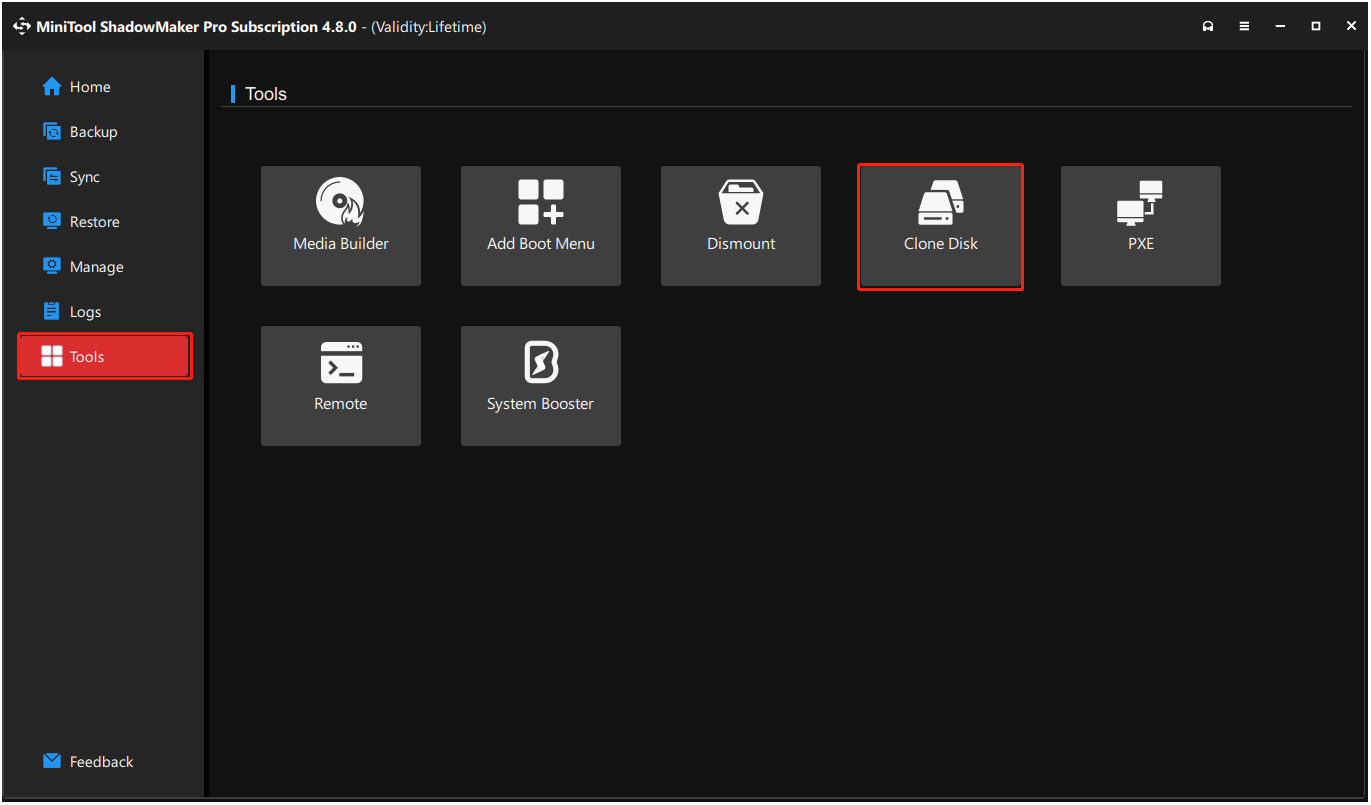
Step 4. Select the source disk and click Next. After that, choose a target disk and click Start.
Step 5. After cloning, the Windows operating system has been cloned to the large SSD successfully. Then, boot from the cloned SSD is available.
If you want to keep the old disk on this computer as a data storage device, open the computer case, and connect the new disk to another slot. Then, boot from the new one and format the old one.
If you want to replace the new disk with the old one, open the PC case, remove the old one from the slot, connect the new one and boot Windows from it.
Note:
# 2. Consider the traditional hard disk drive
Although the prices of HDDs are influenced by the SSD shortage, HDDs remain more affordable than SSDs. Thus, use an SSD to store massive data such as media files and backups and keep the operating system and applications on an SSD.
Consider switching to a more budget-friendly HDD when purchasing storage for your computer.
# 3. Look for “DRAM-less” value models
Normally, DRAM-less SSDs are cheaper because they omit the dedicated DRAM and use Host Memory Buffer (HMB) for improved performance.
Therefore, choose an SSD such as the WD Black SN7100 or Samsung 990 EVO Plus, which provides excellent Gen4 performance at a more affordable price compared to flagship models.
# 4. Consider refurbished/used
Consider purchasing reliable refurbished units or used parts on platforms such as eBay for better value. However, there may be potential risks. Evaluate seller reputation, verify product details, and understand return policies to make informed and safe decisions.
# 5. Explore enterprise liquidation
The used enterprise SSDs often have significant remaining life and higher endurance than consumer drives, all at a fraction of the current retail price. Therefore, seeking reputable resellers for purchasing used enterprise SSDs is a wise choice.
# 6. Focus on other upgrades
If upgrading your SSD isn’t essential, consider updating other PC components first, such as peripherals or monitors which are less impacted by the SSD shortage. Their prices are typically more affordable.
# 7. Look into pre-built systems
Sometimes, pre-built PCs are more cost-effective options as manufacturers get volume discounts on parts. Therefore, if you are urgent for getting a desktop computer, choose a pre-built system.
Storage Management and Optimization
# 1. Perform Disk Cleanup
Disk Cleanup frees up storage space, enhances computer speed, and maintains system health by removing unnecessary files, including temporary and cached data.
This avoids low disk space, makes room for new apps and updates, and ensures efficient operation, particularly on systems with limited storage. Here’s the tutorial:
Step 1. Press Win + S to open the Search window, type disk cleanup, and press Enter.
Step 2. Select the system drive from its drop-down menu and click OK.
Step 3. Check the files that you want to remove and click OK. Then, click Delete Files from the pop-up window.
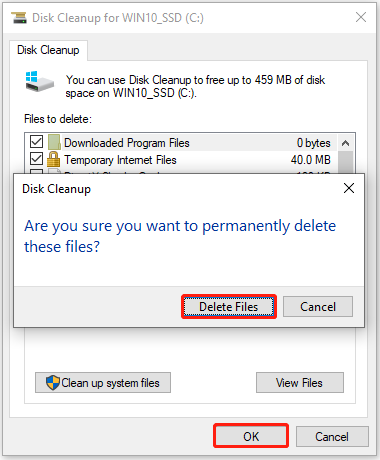
Step 4. Back to the Disk Cleanup window, click Clean up system files.
Step 5. Select the system drive and click OK again.
Step 6. Check unwanted files and click OK. Then, click Delete Files.
# 2. Uninstall Unnecessary Programs/Games
Uninstalling unnecessary programs and games can free up storage, boost performance, enhance security, and improve system stability, preventing slowdowns and potential malware infections. Here’s how to do that:
Step 1. Open the Search window, type control panel, and press Enter.
Step 2. Set View by to Large icons and select Program and Features.
Step 3. Find the infrequently used apps from the list, right-click one, and select Uninstall.
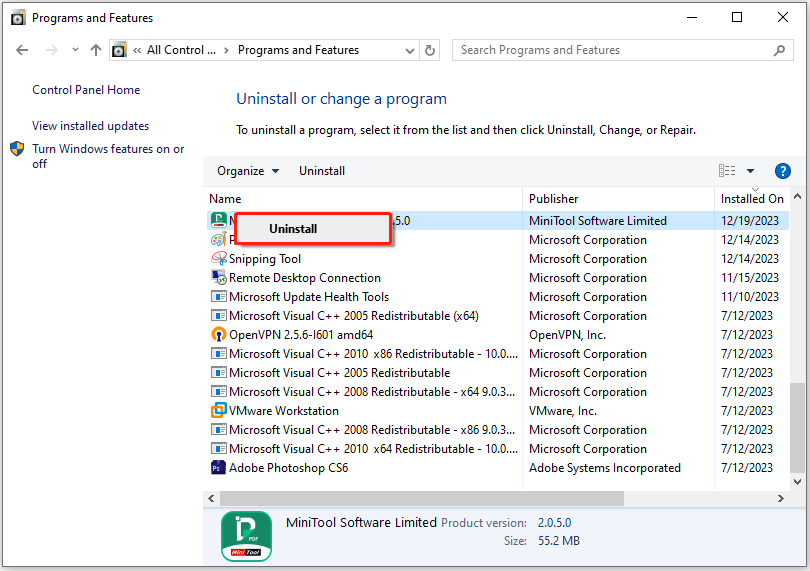
Step 4. Follow the on-screen instructions to complete the process. Then, repeat step 3 and 4 to uninstall all the unwanted apps.
# 3. Use Cloud Services
Using cloud services is another useful method for coping with the SSD shortage. It stores files on remote servers, prevents device clutter, allows for easy backup and sharing, and eliminates the need for external hardware.
There are various cloud services, such as Google Drive, OneDrive, Dropbox, and others. Here’s how to upload files to Google Drive:
Note:
Google Drive offers 15 GB of free storage shared across Drive, Gmail, and Photos. Users can upgrade to larger plans, starting with 100 GB, with paid Google One subscriptions for more space and benefits.
Step 1. Sign in to Google Drive in your browser.
Step 2. Click + New and select Upload File from its drop-down menu.
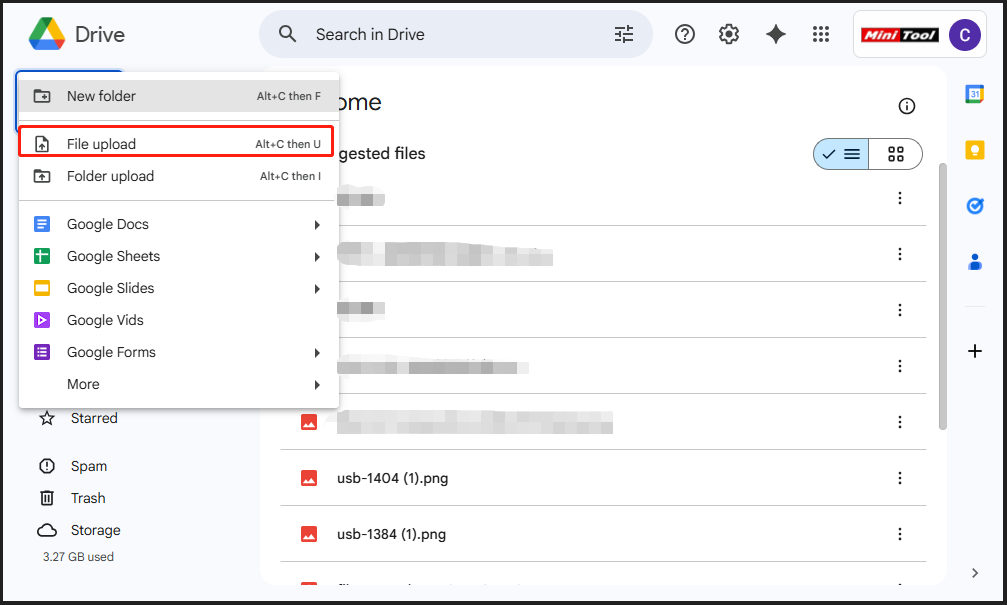
Step 3. Select the files that you want to back up and click Open.
Step 4. Once the uploading process is done, all the selected files can be transferred to Google Drive successfully.
# 4. Disable Hibernation
The Hiberfil.sys file takes up gigabytes and causes unnecessary write cycles, potentially reducing SSD lifespan. Hence, disabling hibernation to free up significant disk space with the following steps:
Step 1. Open the Search window, type cmd, right-click Command Prompt under Best match, and then select Run as administrator.
Step 2. In the elevated Command Prompt window, type powercfg.exe /hibernate off and press Enter to disable hibernation. After executing the command, hibernation should be disabled.
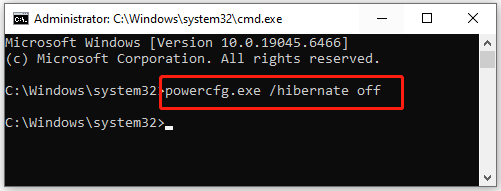
Step 3. To see which sleep states are available, type powercfg /a and press Enter.
To enable hibernation again, execute the powercfg.exe /hibernate on command.
How to Cope with PC Memory Shortage
To tackle the computer memory shortage, prioritize optimizing your software and making smart purchasing choices due to high RAM prices. Although hardware upgrades can help, maximizing your current system’s efficiency is crucial. To do that, from two aspects:
- Software and System Optimization
- Hardware and Purchasing Decisions
Software and System Optimization
# 1. Try Some Basic Tricks
If you decide to delay buying and upgrading RAM during the DDR5 RAM shortage period, try the following basic tips to reduce the pressure on your RAM:
- Restart your PC regularly
- Manage startup programs
- Clear temporary files and use Disk Cleanup
- Close unused applications and browser tabs
- Keep software and drivers updated
# 2. Increase Virtual Memory (Paging File Size)
Increasing virtual memory allows your system to utilize hard drive space as temporary RAM. This can help prevent crashes and support larger workloads when physical RAM runs out of space.
Therefore, adjusting the virtual memory settings to enhance your system’s efficiency is definitely worth considering. Here’s how to do it:
Step 1. Press Win + R to open Run, type sysdm.cpl, and hit Enter.
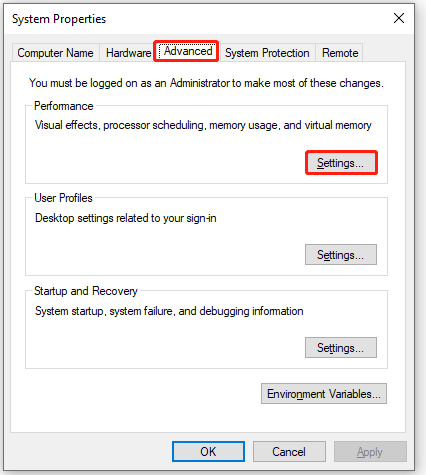
Step 2. Go to the Advanced tab and click Settings under Performance.
Step 3. In the Performance Options window, go to the Advanced tab. Then, click Change under the Virtual memory section.
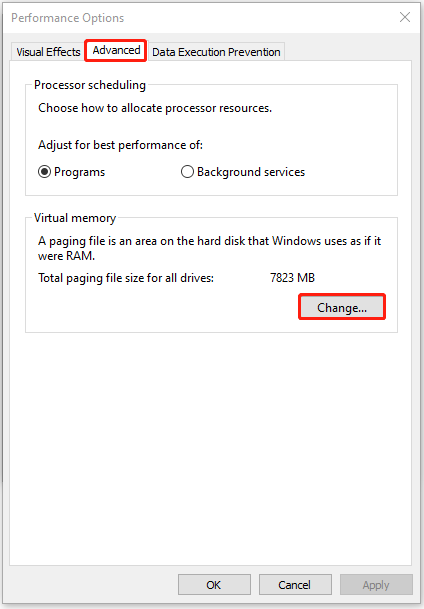
Step 4. Uncheck Automatically manage paging file size. Then, select a drive, choose Custom Size, and set an initial and maximum size (greater than the recommended size).
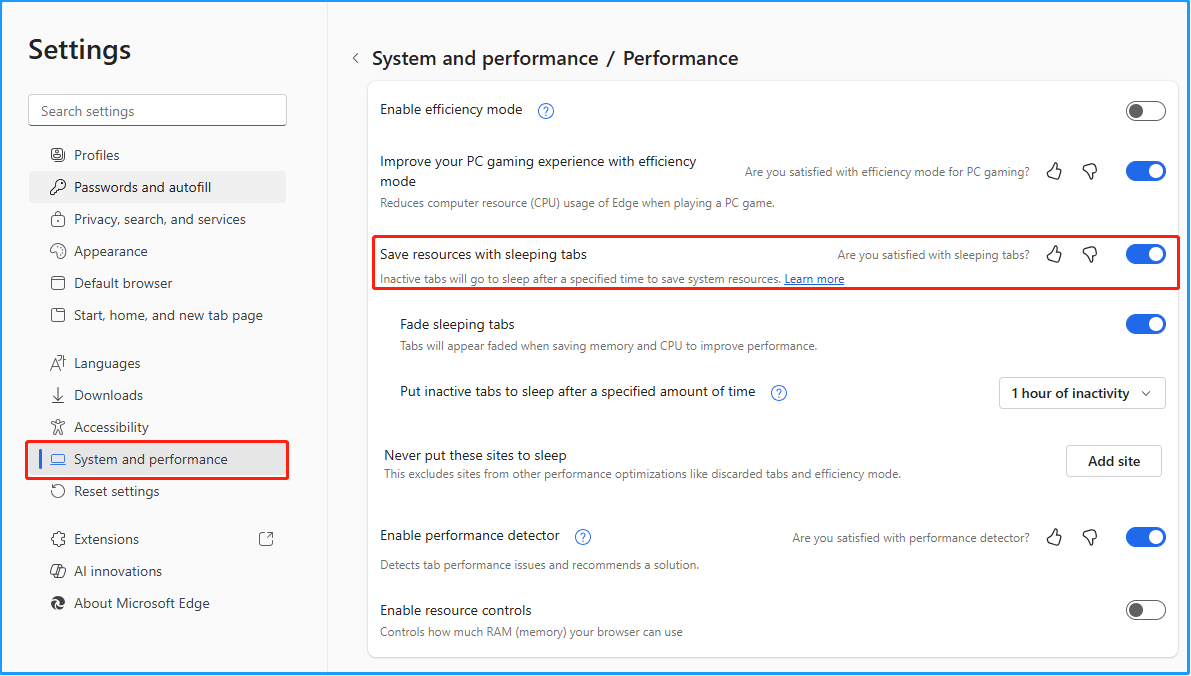
# 3. Enable Sleeping Tabs in Microsoft Edge
Enabling “Sleeping Tabs” in Microsoft Edge puts inactive tabs in a low-resource state, improving performance and reducing RAM/CPU usage. Here’s how to do that:
Step 1. Open Microsoft Edge, click the three dots in the top-right corner, and select Settings.
Step 2. Select System and performance from the left panel.
Step 3. Choose Performance, and toggle the switch of Save resources with sleeping tabs to On. (It’s on by default.)
Tips:
If you want to customize inactivity, use the dropdown menu next to Put inactive tabs to sleep after a specified amount of time to choose how long a tab stays active (e.g., 5 minutes, 1 hour, 2 hours) before it goes to sleep.
Hardware and Purchasing Decisions
If you must upgrade or buy new hardware during this shortage, follow the tips:
- Consider a pre-built PC
- Buy RAM now if needed
- Upgrade to an SSD
- Explore the used market (with caution)
Future Predict: Will SSD/RAM Prices Go Down in 2026?
Experts and companies like Kingston, Micron, and Framework predict that SSD and RAM prices will stay high or rise in 2026 due to strong AI demand, supply constraints, and industry consolidation, such as Micron exiting the consumer market.
Then, in late 2026 or 2027, prices may potentially stabilize or fall, but not drop significantly in early 2026 as some hoped.
Final Words
This post reveals the reasons behind the SSD shortage and provides some useful methods to help you cope with this shortage. Additionally, it provides insights into the causes and solutions to memory shortages.
What’s more, if you encounter any issues while using MiniTool ShadowMaker, contact us via [email protected].
SSD Shortage FAQ
Will AI cause a GPU shortage?
Yes, AI may cause a GPU shortage. This is because major manufacturers like NVIDIA and AMD are prioritizing high-margin AI data center chips for significantly higher profitability over consumer gaming GPUs.
Why does AI use GPU instead of CPU?
AI prefers GPUs over CPUs because GPUs excel at parallel processing, allowing them to solve thousands of identical math problems simultaneously, while CPUs are short in this aspect.
How long do GPUs typically last?
Typically, CPUs have a physical lifespan of 3 to 8 years. However, their effectiveness for demanding tasks, such as modern gaming, tends to decline within 3 to 5 years due to increasing software requirements and performance degradation.
Can a PC run without a CPU?
No, a PC cannot run without a CPU. It is a fundamental component for any modern PC to operate. Without a CPU, the system won’t boot, display anything, or perform useful tasks.


